Sony DEV-50V Manual do Utilizador Página 1
Consulte online ou descarregue Manual do Utilizador para Câmaras de vídeo Sony DEV-50V. Sony DEV-50V User Manual [es] Manual do Utilizador
- Página / 90
- Índice
- RESOLUÇÃO DE PROBLEMAS
- MARCADORES
Avaliado. / 5. Com base em avaliações de clientes


Table of Contents Menu Lists Index
GB
Click
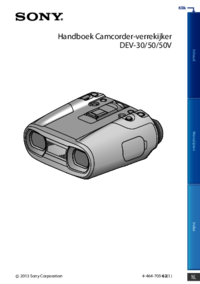
Digital Recording Binoculars
Handbook
DEV-30/50/50V
2013 Sony Corporation 4-464-705-12(1)
- Digital Recording Binoculars 1
- Handbook 1
- DEV-30/50/50V 1
- Read this first 2
- Viewing 3D video images 4
- Notes on use 4
- About dust & rain 5
- Table of contents 7
- Customizing this product 8
- Additional information 8
- Quick reference 9
- Step 1: Checking the 10
- Attaching the supplied items 11
- Step 2: Charging the 12
- When the battery is charged 13
- Step 3: Turning the 14
- Image in the right 15
- Image viewed by both eyes 15
- Image in the left 15
- Select [Run] 16
- Adjust the 3D lens 16
- Step 4: Inserting a 17
- To eject the memory card 18
- Using this product as 19
- To adjust the focus manually 20
- (Hyper Gain) 20
- Recording 21
- Shooting photos 22
- Playback on this 23
- Playing images on a TV 25
- (Yellow) 26
- AV Cable (sold separately) 26
- HDMI Cable (supplied) 26
- Using “BRAVIA” Sync 27
- Useful functions for 28
- Recording information on 29
- (DEV-50V) 29
- Controlling the image 30
- Editing on this product 32
- Dividing a movie 33
- Playing images on a computer 35
- Preparing a computer 36
- To create a Blu-ray disc 37
- Blu-ray Disc 39
- Saving images on an 40
- USB Adaptor Cable 41
- VMC-UAM2 (sold separately) 41
- Creating a standard 43
- Using menus 44
- Menu lists 45
- Image Quality/Size 46
- Playback Function 46
- Edit/Copy 46
- * DEV-50V 47
- Shooting Mode 48
- Camera/Mic 48
- Exposure 49
- Shutter Speed 50
- AE Shift 50
- White Balance Shift 50
- Hyper Gain 51
- Auto 3D Lens Adjust 51
- Scene Selection 51
- Self-Timer 52
- Tele Macro 52
- SteadyShot 53
- Digital Zoom 53
- Auto Back Light 53
- Dial Setting 53
- Face Detection 54
- Closer Voice 54
- Auto Wind NR 54
- Edit/Copy 57
- Setup 58
- Date/Time 59
- Camera Data 59
- Coordinates (DEV-50V) 59
- HDMI 3D Setting 60
- HDMI Resolution 60
- CTRL FOR HDMI 60
- (Control for HDMI) 60
- USB Connect 60
- USB LUN Setting 61
- VF Brightness 61
- Viewfinder Adjust 61
- GPS Information 61
- Power Save 63
- Initialize 63
- Date & Time Setting 63
- Area Setting 63
- Troubleshooting 65
- Batteries/power sources 66
- Viewfinder 66
- Memory card 67
- Playback 68
- Self-diagnosis display/ 70
- Warning indicators 70
- Deleting movies/photos 73
- Copying movies/photos 73
- Recording time of 74
- Using this product 76
- Setting to the local time 77
- Maintenance and 78
- About the memory card 79
- On usable memory card 80
- On the memory card adaptor 80
- On image data compatibility 80
- C to 30 C 81
- C (50 °F) or below 81
- Moisture condensation 82
- On handling the casing 82
- Notes on the License 84
- Screen indicators 85
- Parts and controls 86
Resumo do Conteúdo
Página 1 - DEV-30/50/50V
Table of Contents Menu Lists IndexGBClickDigital Recording Binoculars HandbookDEV-30/50/50V 2013 Sony Corporation 4-464-705-12(1)
Página 2 - Read this first
10Table of Contents Menu Lists IndexGBGetting startedStep 1: Checking the supplied itemsThe numbers in ( ) are the supplied quantity.Digital Recording
Página 3
11Table of Contents Menu Lists IndexGBAttaching the supplied itemsAttaching the neck strapTo avoid dropping this product, attach the neck strap to the
Página 4 - Notes on use
12Table of Contents Menu Lists IndexGBStep 2: Charging the battery packYou can charge the “InfoLITHIUM” battery pack (V series).NotesYou cannot use an
Página 5 - About dust & rain
13Table of Contents Menu Lists IndexGB5 When the battery is charged, disconnect the AC Adaptor from the DC IN jack of this product.Charging timeAppr
Página 6
14Table of Contents Menu Lists IndexGBDo not use the AC Adaptor placed in a narrow space, such as between a wall and furniture.Do not short-circuit th
Página 7 - Table of contents
15Table of Contents Menu Lists IndexGB3 Adjust the width between the left and right viewfinder to fit your eyes using the IPD ADJ dial.Adjust the wi
Página 8 - Additional information
16Table of Contents Menu Lists IndexGBIf you see the image below, the device works correctly.If you see the image below even after adjusting the viewf
Página 9 - Quick reference
17Table of Contents Menu Lists IndexGBNotesThe date and time does not appear during recording, but they are automatically recorded on the memory card,
Página 10 - Step 1: Checking the
18Table of Contents Menu Lists IndexGB1 Open the battery/memory card cover (p. 12), and insert the memory card with the nothched edge in the directi
Página 11 - Attaching the supplied items
19Table of Contents Menu Lists IndexGBBinoculars/Recording/PlaybackUsing this product as binoculars1 Press the POWER button.This product is turned o
Página 12 - Step 2: Charging the
2Table of Contents Menu Lists IndexGBRead this first Using this productDo not hold this product by the following parts. Also, do not hold this product
Página 13 - When the battery is charged
20Table of Contents Menu Lists IndexGBMove the power zoom lever slightly for a slower zoom. Move it further for a faster zoom.NotesBe sure to keep you
Página 14 - Step 3: Turning the
21Table of Contents Menu Lists IndexGBRecordingIn the default setting, images in the viewfinder are displayed in 3D (p. 20), but movies are recorded i
Página 15 - Image in the left
22Table of Contents Menu Lists IndexGBThe following states will be indicated if data is still being written onto the memory card after recording has f
Página 16 - Adjust the 3D lens
23Table of Contents Menu Lists IndexGB Press PHOTO lightly to adjust the focus, then press it fully.When disappears, the photo is recorded.NoteYo
Página 17 - Step 4: Inserting a
24Table of Contents Menu Lists IndexGBEvent titleTotal time of movies/Total number of photos in the eventSwitch Image Type button (2D only) (MOVIE,
Página 18 - To eject the memory card
25Table of Contents Menu Lists IndexGBPlaying images on a TVConnection methods, the image type (3D or 2D) and the image quality (high definition or st
Página 19 - Using this product as
26Table of Contents Menu Lists IndexGB Select / to adjust the horizontal direction .Connecting to a high definition TVThe movies are played bac
Página 20 - (Hyper Gain)
27Table of Contents Menu Lists IndexGBUsing “BRAVIA” SyncYou can operate this product with the remote commander of your TV by connecting this product
Página 21 - Recording
28Table of Contents Menu Lists IndexGBAdvanced operationsUseful functions for recording movies and photosThe available menu items differ between the m
Página 22 - Shooting photos
29Table of Contents Menu Lists IndexGBRecording modes and the mediaTypes of media that images can be saved on will depend on the recording mode select
Página 23 - Playback on this
3Table of Contents Menu Lists IndexGBDVD media recorded with high definition image qualityDVD media recorded with high definition image quality can be
Página 24
30Table of Contents Menu Lists IndexGBWhen this product receives GPS signals that have been reflected off surrounding buildings.When the GPS signal is
Página 25 - Playing images on a TV
31Table of Contents Menu Lists IndexGB Rotate the MANUAL dial and select the item to be assigned. Press MANUAL.NotesManual settings will be retained
Página 26 - HDMI Cable (supplied)
32Table of Contents Menu Lists IndexGBEditing on this productDeleting imagesYou can free memory card space by deleting movies and photos from memory c
Página 27 - Using “BRAVIA” Sync
33Table of Contents Menu Lists IndexGBProtecting recorded movies and photos (Protect)Protect movies and photos to avoid deleting them by mistake. S
Página 28 - Useful functions for
34Table of Contents Menu Lists IndexGB Select .NotesYou cannot restore movies once they are divided.You cannot divide protected movie. Undo the
Página 29 - (DEV-50V)
35Table of Contents Menu Lists IndexGBSaving movies and photos with a computerPlaying images on a computerThe “PlayMemories Home” software allows you
Página 30 - Controlling the image
36Table of Contents Menu Lists IndexGBPreparing a computer (Windows)Checking the computer systemOS*1Microsoft Windows XP SP3*2/Windows Vista SP2*3/Win
Página 31
37Table of Contents Menu Lists IndexGBTo disconnect this product from the computer Click the icon at the bottom right of the desktop of the compute
Página 32 - Editing on this product
38Table of Contents Menu Lists IndexGBStarting the “PlayMemories Home” software1 Double-click the “PlayMemories Home” icon on the computer screen.Wh
Página 33 - Dividing a movie
39Table of Contents Menu Lists IndexGBSaving images with an external deviceSelecting a method for saving images on an external deviceYou can save movi
Página 34
4Table of Contents Menu Lists IndexGBViewing 3D video imagesSome people may experience discomfort (such as eye strain, fatigue, or nausea) while watch
Página 35 - Playing images on a computer
40Table of Contents Menu Lists IndexGBSaving images on an external media deviceYou can save movies and photos on an external media device (USB storage
Página 36 - Preparing a computer
41Table of Contents Menu Lists IndexGB4 Select [Copy.] on the screen of this product.Movies and photos that are stored on the memory card in this pr
Página 37 - To create a Blu-ray disc
42Table of Contents Menu Lists IndexGB Follow the instructions that appear on the viewfinder screen to select the image selection methods and type
Página 38
43Table of Contents Menu Lists IndexGBCreating a standard definition image quality disc with a recorder, etc.You can copy images played back on this p
Página 39 - Blu-ray Disc
44Table of Contents Menu Lists IndexGBCustomizing this productUsing menusThis product has various menu items under each of 6 menu categories. Shooting
Página 40 - Saving images on an
45Table of Contents Menu Lists IndexGBMenu listsThe available menu items differ between the movie mode ( ) and photo mode ( ). Shooting ModeMovieRecor
Página 41 - VMC-UAM2 (sold separately)
46Table of Contents Menu Lists IndexGBMicref LevelSets the microphone reference level. 55Shooting AssistMy ButtonAssigns functions to My Buttons. 55Gr
Página 42
47Table of Contents Menu Lists IndexGBHDMI 3D SettingSelect the output format of the right and left images when you connect this product to a 3D TV wi
Página 43 - Creating a standard
48Table of Contents Menu Lists IndexGB Shooting Mode (Items for selecting a shooting mode)See “Using menus” (p. 44) on the operation.MovieYou can rec
Página 44 - Using menus
49Table of Contents Menu Lists IndexGBNotesSet [White Balance] to [Auto] or adjust the color in [One Push] under white or cool white fluorescent lamps
Página 45 - Menu lists
5Table of Contents Menu Lists IndexGBAbout dust & rain proof performance of this productThe main unit of this product has been proven (by our perf
Página 46 - Edit/Copy
50Table of Contents Menu Lists IndexGBIRIS You can shoot images with the IRIS priority mode. If you adjust the IRIS, you can sharpen the subject wit
Página 47 - * DEV-50V
51Table of Contents Menu Lists IndexGBLow Lux You can record bright color images, even in dim light.OffThe Low Lux function is not used.On ( )The L
Página 48 - Camera/Mic
52Table of Contents Menu Lists IndexGB (Sunrise&Sunset)*Reproduces the atmosphere of scenes such as sunsets or sunrises. (Fireworks)*Takes spectac
Página 49 - Exposure
53Table of Contents Menu Lists IndexGBSteadyShot You can compensate for camera shake.Set [SteadyShot] to [Off] ( ) when using a tripod (sold separat
Página 50 - White Balance Shift
54Table of Contents Menu Lists IndexGBFace Detection You can set this product to detect a face automatically.It adjusts the focus/color/exposure a
Página 51 - Scene Selection
55Table of Contents Menu Lists IndexGBMicref Level (Microphone reference level) You can select the microphone level for recording sound.NormalRecor
Página 52 - Tele Macro
56Table of Contents Menu Lists IndexGB Image Quality/Size (Items for setting up image quality or size)See “Using menus” (p. 44) on the operation.The
Página 53 - Dial Setting
57Table of Contents Menu Lists IndexGBImage SizeYou can select a size for the photos you are going to shot. L (20.4M)Records photos clearly in the 16
Página 54 - Auto Wind NR
58Table of Contents Menu Lists IndexGB Setup (Other setup items)See “Using menus” (p. 44) on the operation.The default settings are marked with .Med
Página 55
59Table of Contents Menu Lists IndexGBDate/Time Date TimeCamera Data SteadyShot off White Balance Shutter Speed IRIS (Aperture value) Gain Bri
Página 56
6Table of Contents Menu Lists IndexGBThe drains on the bottom of this product are designed to allow any water or sand entering via the clearance of th
Página 57 - Edit/Copy
60Table of Contents Menu Lists IndexGB4:3Select this to view your movies and photos on a 4:3 standard TV. The recorded movies and photos are played ba
Página 58 - Setup
61Table of Contents Menu Lists IndexGBUSB LUN Setting Improves compatibility with external devices by limiting the functions of the USB connecti
Página 59 - Coordinates (DEV-50V)
62Table of Contents Menu Lists IndexGBTo close the triangulating information screenSelect .GPS Setting (DEV-50V) You can select whether this pr
Página 60 - USB Connect
63Table of Contents Menu Lists IndexGBPower Save You can set this product to turn off automatically when you do not operate this product for mor
Página 61 - GPS Information
64Table of Contents Menu Lists IndexGBAuto Clock ADJ (Auto clock adjustment) (DEV-50V) This product can maintain accurate time automatically by
Página 62
65Table of Contents Menu Lists IndexGBAdditional information TroubleshootingIf you run into any problems using this product, follow the steps below.
Página 63 - Area Setting
66Table of Contents Menu Lists IndexGBIntelligent Auto is canceled.The Intelligent Auto setting is canceled if you change the following settings:[Whit
Página 64
67Table of Contents Menu Lists IndexGBThe image in the viewfinder is not clear.Adjust the diopter using the right and left diopter adjustment knobs un
Página 65 - Troubleshooting
68Table of Contents Menu Lists IndexGBThis product stops operating.If you keep applying vibration on this product, recording may stop.There is a time
Página 66 - Viewfinder
69Table of Contents Menu Lists IndexGBNo sound or only a low volume sound is heard during playback.Turn up the volume (p. 24).When you record sound wi
Página 67 - Memory card
7Table of Contents Menu Lists IndexGBTable of contentsRead this first . . . . . . . . . . . . . . . . . . . . . . . . . . . . . . . . . . . . . . . .
Página 68 - Playback
70Table of Contents Menu Lists IndexGB“PlayMemories Home” does not work correctly.Quit “PlayMemories Home” and restart your computer.This product is n
Página 69
71Table of Contents Menu Lists IndexGB (Warning indicator pertaining to HDMI output stopped by overheating)Because the temperature of this product has
Página 70 - Warning indicators
72Table of Contents Menu Lists IndexGBThis may occur when you keep applying shock on this product.Movies recorded on other devices may not be played b
Página 71
73Table of Contents Menu Lists IndexGBThis memory card may not be able to record or play movies.Use a memory card recommended for this product (p. 17)
Página 72
74Table of Contents Menu Lists IndexGBRecording time of movies/number of recordable photosExpected operating time with each battery packRecording time
Página 73 - Copying movies/photos
75Table of Contents Menu Lists IndexGBExpected recording time of moviesMemory card(unit: minute)16 GB 32 GB 64 GB75(75)150(150)305(305)75(75)150(150)3
Página 74 - Recording time of
76Table of Contents Menu Lists IndexGBThe photo recording pixels and the aspect ratio.Photo recording mode:6,016 3,384 dots/16:94,512 3,384 dots/4
Página 75
77Table of Contents Menu Lists IndexGBWatching the recorded movies on a TVTo watch recorded movies on a TV, record movies after selecting the appropri
Página 76 - Using this product
78Table of Contents Menu Lists IndexGBWorld time differenceTime-zone differencesArea settingGMT Lisbon/London+01:00 Berlin/Paris+02:00 Helsinki/Cairo/
Página 77 - Setting to the local time
79Table of Contents Menu Lists IndexGBDetermining a location is called “triangulating.” A GPS receiver can determine the location’s latitude and longi
Página 78 - Maintenance and
8Table of Contents Menu Lists IndexGBSaving movies and photos with a computerPlaying images on a computer . . . . . . . . . . . . . . . . . . . . . .
Página 79 - About the memory card
80Table of Contents Menu Lists IndexGBIt is recommended that you make a back-up of important data on the hard disk of a computer.Do not attach a label
Página 80 - On image data compatibility
81Table of Contents Menu Lists IndexGBoperating conditions between this product and an AC Adaptor/charger (sold separately).The “InfoLITHIUM” battery
Página 81 - C (50 °F) or below
82Table of Contents Menu Lists IndexGBNear windows or outdoors, where the viewfinder, or the lens may be exposed to direct sunlight. This damages the
Página 82 - On handling the casing
83Table of Contents Menu Lists IndexGBAbout care and storage of the lensWipe the surface of the lens clean with a soft cloth in the following instance
Página 83
84Table of Contents Menu Lists IndexGBAll other product names mentioned herein may be the trademarks or registered trademarks of their respective comp
Página 84 - Notes on the License
85Table of Contents Menu Lists IndexGBQuick referenceScreen indicatorsLeftIndicator MeaningMENU button (44)Self-timer recording (52)GPS triangulating
Página 85 - Screen indicators
86Table of Contents Menu Lists IndexGBIndicator MeaningIRIS (50) Intelligent Auto (28)Slide show button 101-0005Data file name (23)Protected image (
Página 86 - Parts and controls
87Table of Contents Menu Lists IndexGB CHG (charge) lamp (12) Camera recording lamp (62)The camera recording lamp lights up in red during recording.
Página 87
88Table of Contents Menu Lists IndexGBSymbols1080i ...601080p ...60
Página 88
89Table of Contents Menu Lists IndexGBPPhotos ...22Playback Function ...23Playing...
Página 89
9Table of Contents Menu Lists IndexGBUsing this product abroad . . . . . . . . . . . . . . . . . . . . . . . . . . . . . . . . . . . . . . . . . . . .
Página 90
Additional information on this product and answers to frequently asked questions can be found at our Customer Support Website.http://www.sony.net/
Mais documentos para Câmaras de vídeo Sony DEV-50V
Sony DEV-50V Manual do Utilizador
(93 páginas)

Sony DEV-50V Manual do Utilizador
(2 páginas)
Manuais e produtos relacionados com Câmaras de vídeo Sony DEV-50V
Câmaras de vídeo Sony HDR-TG5V Manual do Utilizador

 (135 páginas)
(135 páginas)
Câmaras de vídeo Sony HDR-SR1 Manual do Utilizador
(51 páginas)
(51 páginas)
Câmaras de vídeo Sony DCR-DVD710 Manual do Utilizador
(159 páginas)
(159 páginas)
Câmaras de vídeo Sony HDR-XR100 Manual do Utilizador
 (142 páginas)
(142 páginas)
Câmaras de vídeo Sony DSC-F505V Manual do Utilizador
(68 páginas)
(68 páginas)
Câmaras de vídeo Sony HDR-XR520V Manual do Utilizador
(136 páginas)
(136 páginas)
Câmaras de vídeo Sony HDR-CX300 Manual do Utilizador
(155 páginas)
(155 páginas)


 (2 páginas)
Câmaras de vídeo Sony HDR-SR5 Manual do Utilizador
(118 páginas)
(118 páginas)

Câmaras de vídeo Sony DCR-IP7BT Manual do Utilizador
(48 páginas)
(48 páginas)
Câmaras de vídeo Sony DCR-TRV25 Manual do Utilizador
(220 páginas)
(220 páginas)
© 2020, manymanuals-pt.com. Todos os direitos reservados. | 0.051 s |
 Manymanuals.com
 Manymanuals.de
 Manymanuals.fr
 Manymanuals.it
 Manymanuals.pl
 Manymanuals.cz
 Manymanuals.es
 Manymanuals-pt.com
Comentários a estes Manuais